IMPORTANT! Editing modifier options will affect the store globally. Any item using that modifier and its options will be affected.
Add a Modifier
- Go to Inventory > Items.
- Locate or create the item.
- In the item editor, click the Modifiers tab and locate the desired modifier group.
- Assign the applicable modifier options.
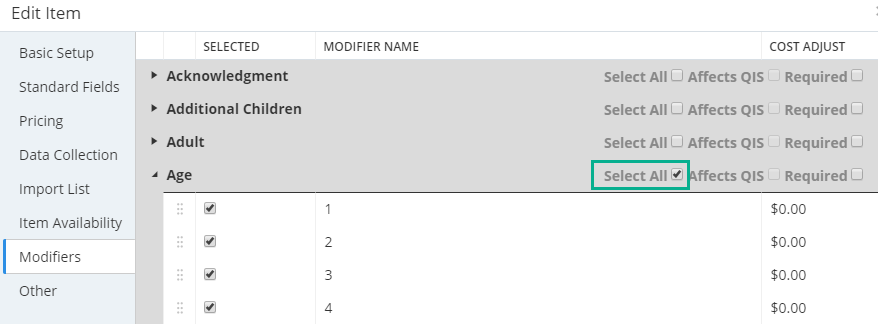
If assigning all options, check the box next to Select All.
If assigning some options, click the arrow next to the modifier group name. Check the box next to each modifier option to add to the group.
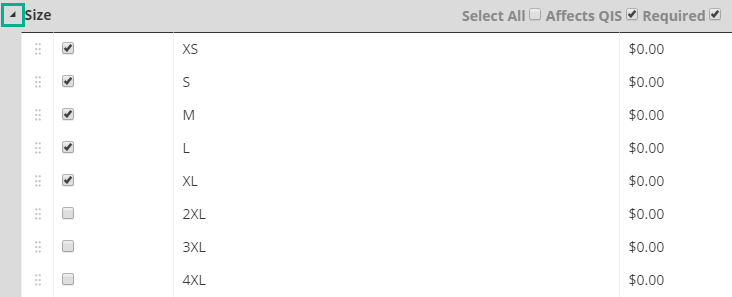
- If the modifier must be answered by the purchaser, check the box next to Required.
- Click UPDATE.
Adjust Price with Modifier Option
- In the item editor, go to the Modifiers tab.
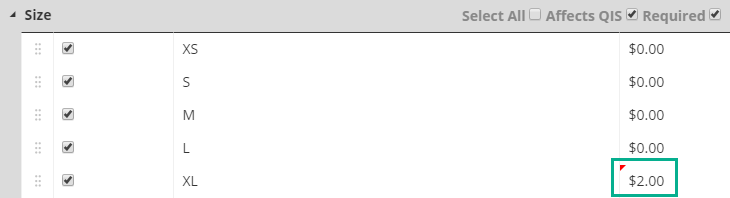
- Next to the modifier option, replace the default value "0" to the new price.
- Click UPDATE.
Manage QIS with Modifier Option
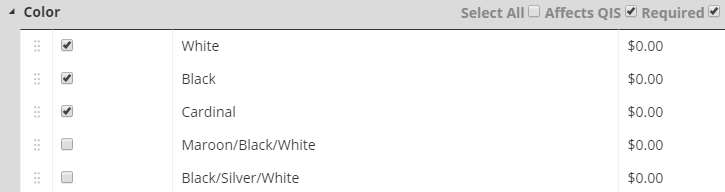
Multiple modifiers can be added to the same item. For each modifier that impacts the quantity in stock, select Affects QIS. For example, a registration item asks the registration type, shirt size, and shirt color but only the shirt size/color should affect QIS and therefore marked as such. If all are selected, iterations of all selected modifier options will inaccurately affect the total available.
- In the item editor, go to the Modifiers tab.
- Add the modifier group and options to the item.
- Check the box next to Required (must be selected first) and then Affects QIS.
- Click UPDATE.
- Go to the Item Availability tab.
- Check the box next to Manage Quantity in Stock and Use Modifier Quantity in Stock.
- In the Quantity in Stock column, enter the numerical values associated with each option.
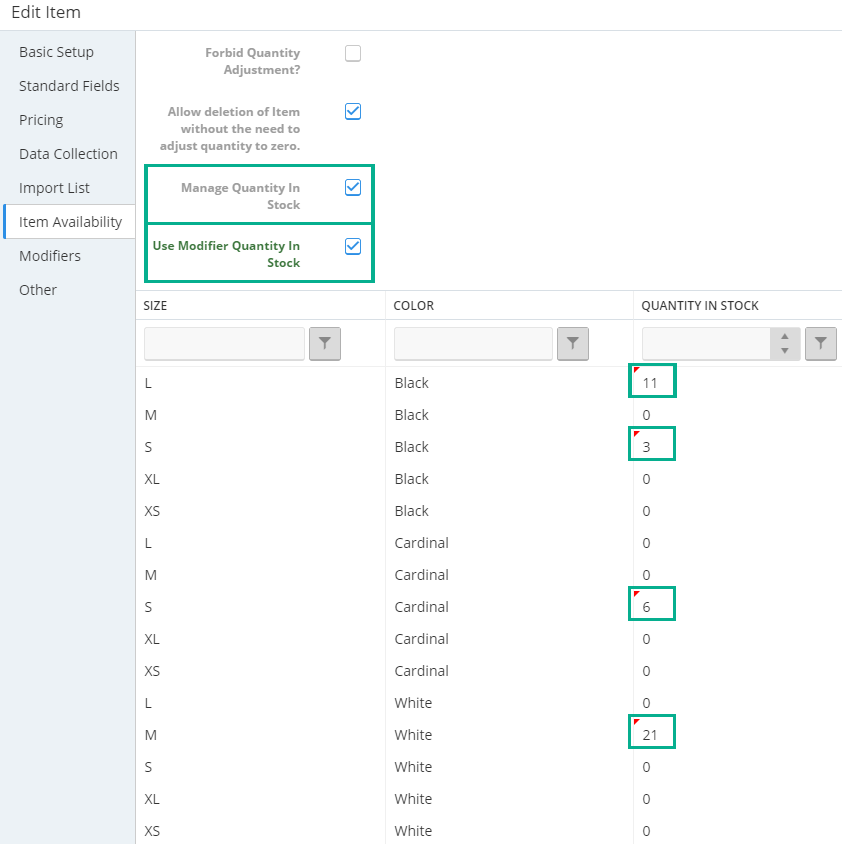
- Update the quantity in stock per combination of modifier options.
- Click UPDATE.
- View the item's front end as a purchaser would. (Refresh after the update.)
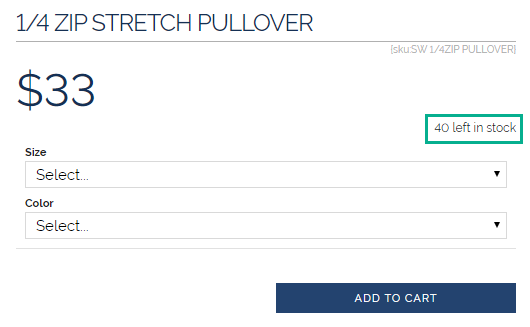
The item displays the total quantity in stock. If the combination of size and color are changed, the number will reflect the quantity in stock for that specific data set.
If a selected combination's stock is depleted, the item will display a message such as "Sold Out". The ADD TO CART button will be inaccessible.
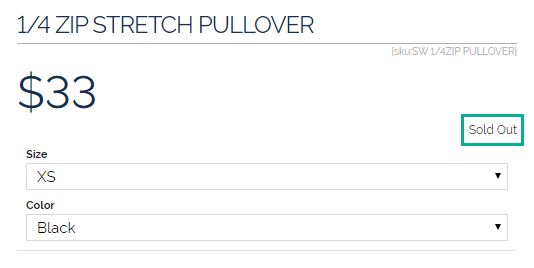
Orders that are voided or refunded will not automatically add the selections back to the quantity counter. To "return" the void/refund quantities to stock, update the value in the Item Availability tab (via item editor).
Remove Modifier Option from Item
- Go to Inventory > Items and locate the item.
- Go to the Modifiers tab and locate the modifier group.
- Remove the desired modifier group or options.
To remove all options (entire modifier group), click the box next to Select All two times.
To remove some options from a modifier group, click the box next to each undesired option.
- Click UPDATE.